Why Your Laptop Battery Drains Faster Than It Should
You're working on an important task, and suddenly your battery icon turns red. You scramble for an outlet, but there's none nearby. Sound familiar? Windows 10 comes with default settings that favor performance over battery life, but with a few tweaks, you can make your laptop last hours longer. This guide walks you through the most effective settings changes—no extra software needed.
1. Use Battery Saver Mode
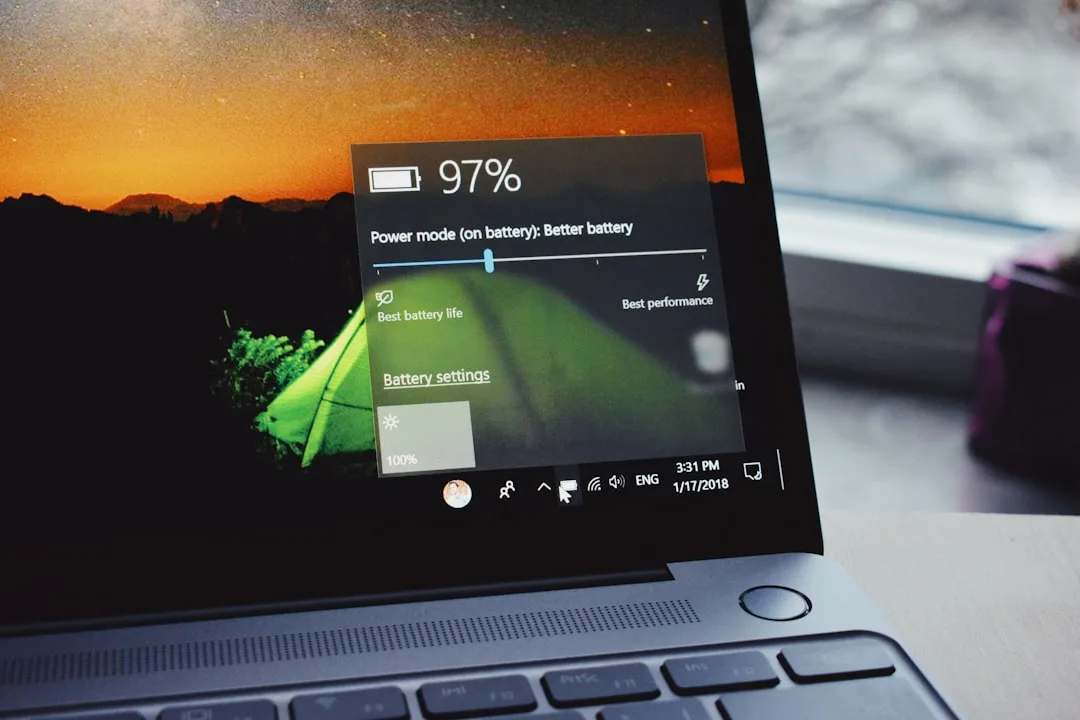
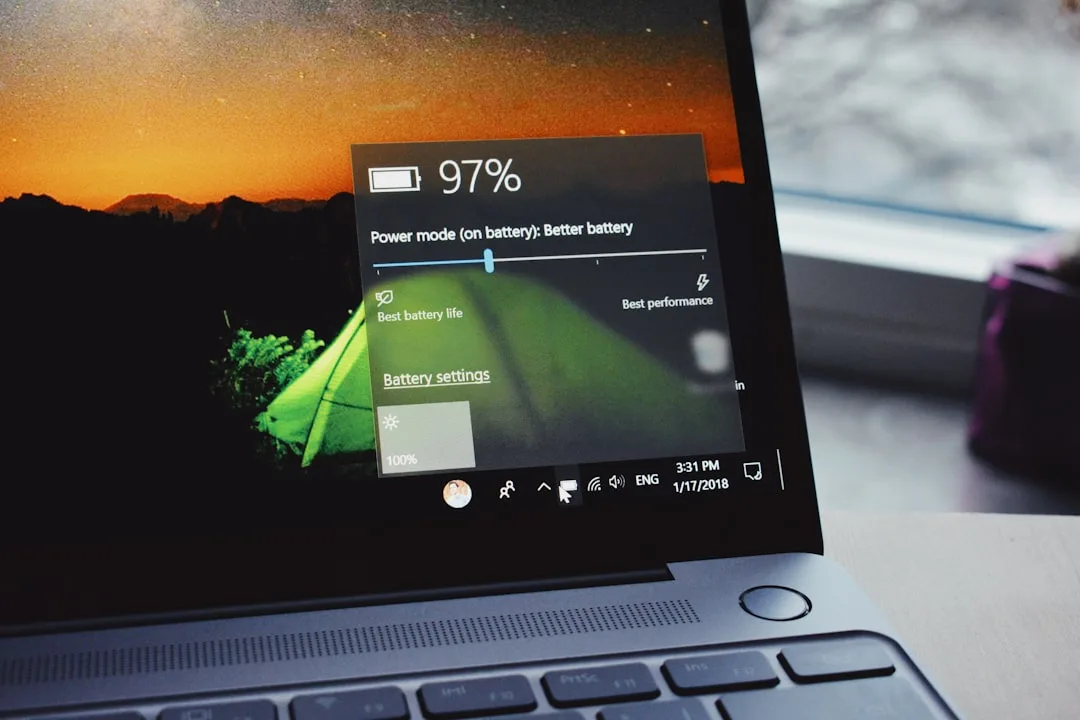
Battery Saver is a built-in feature that automatically reduces background activity and lowers screen brightness to save power. You can turn it on manually or set it to activate at a certain battery level.
- How to enable: Go to Settings > System > Battery. Toggle on Battery saver status until next charge. You can also adjust the threshold (e.g., 20%) under Battery saver settings.
- Tip: Keep it on whenever you're unplugged for maximum savings.
2. Adjust Power & Sleep Settings
Windows 10 offers power plans that control how your hardware behaves. The default is usually Balanced, but switching to Power saver can immediately extend battery life.
How to change the power plan:
- Open Control Panel > Hardware and Sound > Power Options.
- Select Power saver (or High performance only when plugged in).
Fine-tune sleep and display timeouts:
- In the same window, click Choose when to turn off the display and Change when the computer sleeps.
- Set shorter times (e.g., 2–5 minutes for display, 10–15 for sleep) when on battery.
3. Reduce Screen Brightness
The display is one of the biggest power drains. Lowering brightness even by 20% can make a noticeable difference.
- Use the Fn keys on your keyboard to adjust brightness quickly.
- Or go to Settings > System > Display and use the slider.
- Enable adaptive brightness (if supported) under Display settings to let Windows adjust automatically.
4. Turn Off Background Apps
Many apps run in the background, consuming battery even when you're not using them. Windows 10 allows you to control which apps can do this.
- Open Settings > Privacy > Background apps.
- Toggle off Let apps run in the background completely, or individually turn off apps you don't need.
5. Disable Unnecessary Startup Programs
Programs that launch at startup can slow your system and use battery. Disable the ones you don't need.
- Press Ctrl+Shift+Esc to open Task Manager.
- Click the Startup tab.
- Right-click any program you don't need at startup and select Disable.
6. Turn Off Wi-Fi and Bluetooth When Not Needed
Wireless radios consume power. If you're working offline or don't need Bluetooth, disable them.
- Click the network icon in the system tray and toggle Wi-Fi off.
- Open Settings > Devices > Bluetooth & other devices and toggle Bluetooth off.
7. Manage Notifications and Visual Effects
Animations and frequent notifications can drain battery. Reduce them.
Disable notifications:
- Go to Settings > System > Notifications & actions.
- Toggle off Get notifications from apps and other senders.
Reduce visual effects:
- Open Control Panel > System and Security > System > Advanced system settings.
- Under Performance, click Settings.
- Select Adjust for best performance (or customize by unchecking animations).
8. Keep Your Drivers and Windows Updated
Updates often include power efficiency improvements. Make sure your system and drivers are current.
- Go to Settings > Update & Security > Windows Update and click Check for updates.
- For driver updates, visit your laptop manufacturer's website or use their support tool.
- Pay special attention to chipset, graphics, and battery drivers.
9. Hibernate Instead of Sleep
Sleep keeps your session in memory, using a small amount of power. Hibernate saves your session to disk and shuts down completely, using zero power.
- To enable hibernation, open Command Prompt as administrator and type:
powercfg /hibernate on. - Then go to Control Panel > Power Options > Choose what closing the lid does and set it to Hibernate for battery mode.
10. Use Microsoft Edge (or Another Efficient Browser)
Browsers can be power hogs. Microsoft Edge is known for better battery efficiency compared to Chrome or Firefox. If you must use other browsers, consider installing an extension that suspends tabs.
- In Edge, enable Sleeping tabs via Settings > System and performance to save resources.
- Also, turn off hardware acceleration if it doesn't impact your experience (browser settings > system).
FAQ
1. Will changing these settings affect my laptop's performance?
Some settings, like turning off background apps and reducing visual effects, may make your laptop feel less snappy, but the trade-off is longer battery life. You can always revert changes when plugged in.
2. How do I know which apps are draining my battery?
Windows 10 provides a battery usage report. Go to Settings > System > Battery and click Battery usage by app. This shows which apps have used the most battery and helps you decide which to restrict.
3. Does using dark mode save battery?
On laptops with OLED screens, dark mode can reduce power consumption. On LCD screens, the difference is negligible, but it's still a nice option. Enable it under Settings > Personalization > Colors.
4. Should I keep my laptop plugged in all the time?
It's generally fine to keep it plugged in, but try to discharge the battery to around 50-80% occasionally. Some manufacturers offer battery charge limiters in the BIOS or their management software to prevent overcharging.
Key Takeaways
- Use Battery Saver and the Power saver plan.
- Lower screen brightness and sleep timers.
- Disable background apps and startup programs.
- Turn off Wi-Fi/Bluetooth when not in use.
- Keep Windows and drivers updated.
- Hibernate for long breaks instead of sleep.
- Choose battery-efficient browsers.