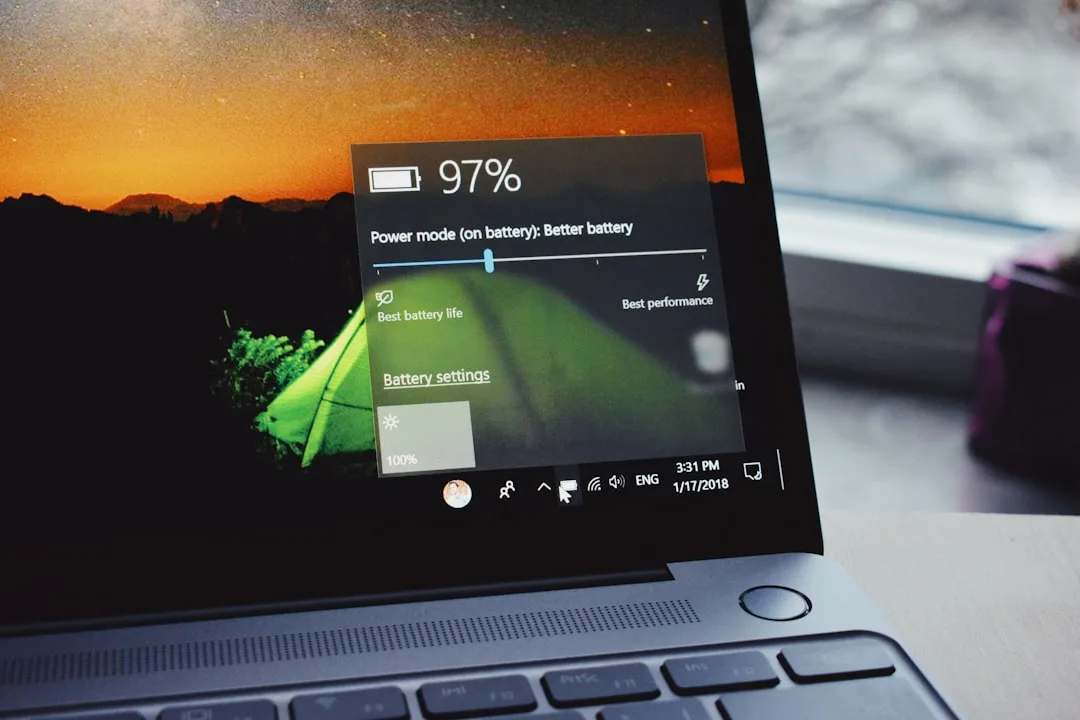
Is your computer screen constantly dimming and brightening on its own, especially when you’re working or watching a movie? That’s adaptive brightness at work — a Windows feature meant to save power and match your environment. But for many users, it feels more like an annoyance than a convenience. The good news? You can turn it off in just a few steps. Here’s everything you need to know about disabling adaptive brightness in Windows 10.
What Is Adaptive Brightness?
Adaptive brightness is a Windows 10 feature that automatically adjusts your screen’s brightness based on two things:
- Ambient light detected by your device’s light sensor (if it has one)
- The content displayed on your screen (Windows can tweak brightness for videos or apps)
On laptops and tablets, it’s especially common because it helps extend battery life by dimming the screen in darker settings. But if you’ve manually set your brightness and the OS keeps overriding it, the effect can be distracting — and even cause eye strain. Fortunately, you’re in control.
Why Does Windows 10 Change Brightness Automatically?
Before diving into the fixes, it helps to know why this happens in the first place:
- Light sensor: Many modern laptops have an ambient light sensor that detects the surrounding light and adjusts the display accordingly.
- Power plans: Windows power plans can have adaptive brightness enabled by default, especially when running on battery.
- Content optimization: Windows may lower brightness when displaying dark images or videos to conserve power.
- Graphics drivers: Intel, AMD, or NVIDIA drivers often include their own dynamic-brightness features that interact with Windows.
- OEM utilities: Laptop manufacturers like Dell, HP, or Lenovo may install their own software that controls automatic brightness.
Whatever the cause, you can usually stop it by following the methods below.
How to Disable Adaptive Brightness in Windows 10
Method 1: Using the Settings App
This is the simplest method, but it only works if your device supports the automatic brightness toggle in Settings.
- Press Windows + I to open Settings.
- Go to System > Display.
- Scroll down to the Brightness and color section.
- Look for a toggle labeled “Change brightness automatically when lighting changes.” Switch it to Off.
- If you also see “Help improve battery by optimizing the content shown and brightness,” uncheck that box as well.
If you don’t see these options, your device may not have a light sensor or the setting is hidden by your manufacturer — skip to Method 2 or 3.
Method 2: Through Control Panel Power Options
The classic Power Options window gives you granular control over adaptive brightness for both battery and plugged-in modes. This is the most reliable method on most laptops.
- Open Control Panel. You can find it by searching in the Start menu.
- Set the view mode to Large icons.
- Click Power Options.
- Next to your active power plan (usually “Balanced”), click Change plan settings.
- Click Change advanced power settings.
- In the list, scroll down and expand Display.
- Click to expand Enable adaptive brightness.
- Set both On battery and Plugged in to Off.
- Click Apply and then OK.
Now your brightness should stay exactly where you set it, no sudden changes.
Method 3: Unhide the Missing Power Option via Registry
On some devices, the “Enable adaptive brightness” option in Power Options is hidden by the manufacturer. You can unhide it by editing the Windows Registry. This is a bit more technical, but it’s very effective.
- Press Windows + R, type
regedit, and press Enter. - Navigate to this exact path:
HKEY_LOCAL_MACHINE\SYSTEM\CurrentControlSet\Control\Power\PowerSettings\7516b95f-f776-4464-8c53-06167f40cc99\ada99b58-3f9e-4d6e-9f6c-30c1e0c8d34aIf you can’t find the folder ada99b58-3f9e-4d6e-9f6c-30c1e0c8d34a, use your Registry Editor’s search function (Ctrl+F) to search for “adaptive brightness” and see if a similar key exists.
- In the right pane, double-click the Attributes value (a DWORD).
- Change the Value data from
1to0. - Click OK and close the Registry Editor.
- Restart your computer.
- Now go back to Power Options (via Control Panel) and you’ll find the Enable adaptive brightness option is no longer hidden. Set it to Off as described in Method 2.
Extra Steps to Stop Automatic Brightness for Good
If adaptive brightness is off and the screen is still changing brightness on its own, try these additional fixes.
Disable the Light Sensor in Device Manager
Your laptop may be equipped with an ambient light sensor that Windows uses even when adaptive brightness is disabled. You can turn it off entirely:
- Right-click the Start button and select Device Manager.
- Expand the Sensors category.
- Look for something like “Ambient Light Sensor” or “Light Sensor.”
- Right-click it and choose Disable device.
- Confirm any warnings.
This may also disable features like auto keyboard backlight, so weigh the pros and cons.
Update Your Display Driver
Outdated or buggy graphics drivers can cause unpredictable brightness behavior. To keep things stable:
- Go to Device Manager > Display adapters, right-click your GPU, and select Update driver.
- Alternatively, check your graphics card maker’s website (Intel, AMD, NVIDIA) for the latest driver.
- Restart after updating.
Turn Off Graphics Software Brightness Overrides
If you have dedicated GPU control panels, they may contain their own adaptive brightness settings:
- Intel Graphics Command Center: Look for “Power” or “Display” settings and disable dynamic brightness.
- AMD Radeon Software: Go to Display tab and turn off any “Vari-Bright” or “Adaptive” features.
- NVIDIA Control Panel: Look for “Adjust desktop color settings” and check for brightness-related options.
These settings can override Windows, so make sure they’re off too.
Frequently Asked Questions
Does disabling adaptive brightness affect battery life?
Yes, it can. Adaptive brightness dims your screen in dark environments to save energy. When you turn it off, your screen stays at the same brightness regardless of ambient light, which may lead to slightly faster battery drain. You can manually adjust brightness to compensate.
Why don’t I have the “Change brightness automatically when lighting changes” toggle in Settings?
That toggle only appears on devices with an ambient light sensor and proper drivers. If your device lacks the sensor or the driver doesn’t expose it, the option is hidden. In that case, use the Power Options or Registry method instead.
The “Enable adaptive brightness” option is grayed out in Power Options. What should I do?
Grayed-out settings usually mean the power plan is locked by your computer manufacturer. Try these fixes:
- Unlock the setting via the Registry method (set Attributes to 0).
- Select a different power plan and then check again.
- Update your laptop’s BIOS or power management drivers from the manufacturer’s website.
Will disabling adaptive brightness stop brightness changes during video playback?
Not always. Windows may still apply content-based brightness for dynamic range optimization, and some video players or graphics drivers can adjust brightness for HDR content. To fully eliminate automatic changes, disable adaptive brightness in both Windows and your graphics software, then also check the video player’s own settings.
Key Takeaways
- Adaptive brightness can be turned off through Windows Settings, Control Panel Power Options, or the Registry.
- Check the Settings app first — it’s the quickest if the toggle is present.
- Power Options gives you independent control for battery and plugged-in states.
- If the option is hidden, unhide it by changing the Registry “Attributes” DWORD to 0.
- Disable the light sensor in Device Manager and update graphics drivers if adaptive brightness persists.
- Remember that disabling adaptive brightness may reduce battery life slightly — you can always adjust brightness manually.