You're in the middle of something important—maybe a report, a video call, or just a quick search—and suddenly your laptop freezes. The cursor moves or doesn't, the screen glitches, and you're forced to force a shutdown. If this happens a lot, you're not alone. Windows 10 laptops freeze for many reasons, but the good news is there are several proven fixes you can try right now. This guide walks you through seven of them, step by step.
Why Do Windows 10 Laptops Freeze?
Freezing can be caused by anything from software conflicts to hardware stress. The most common culprits include:
- Too many programs running at once (memory overload)
- Overheating due to dust or poor ventilation
- Outdated or incompatible drivers
- Malware or viruses hogging resources
- Failing hardware (like a hard drive or RAM)
- Windows updates that didn't install properly
Don't worry—you don't need to be a tech expert to fix most of these. Let's jump into the solutions.
1. Restart and Install Pending Windows Updates
Sometimes the simplest fix is a fresh start. Save your work, restart your laptop, and see if the freezing persists. If it does, check for Windows updates.
- Go to Settings > Update & Security > Windows Update.
- Click Check for updates and install any available updates.
- Restart your laptop after updates are installed.
Microsoft regularly releases patches that fix bugs causing system freezes. Keeping Windows updated is one of the easiest ways to prevent instability.
2. Check Your Laptop's Temperature
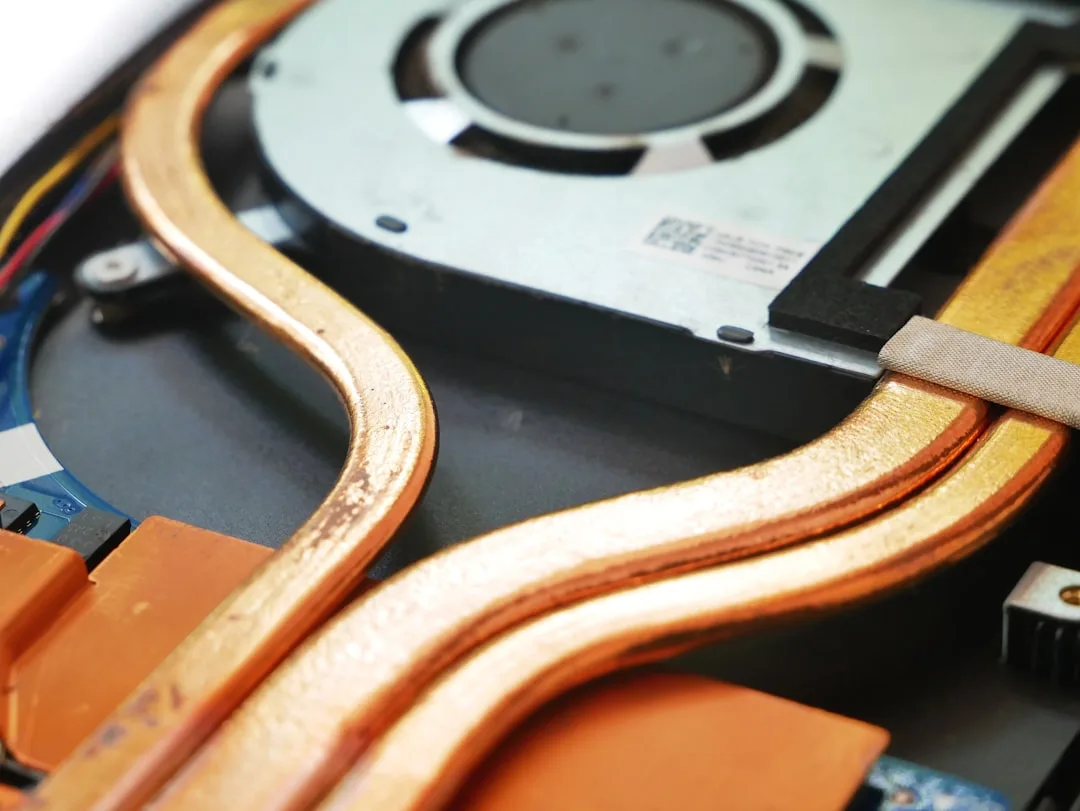
Overheating is a prime suspect when a laptop freezes. If the underside feels hot or the fan sounds like a jet engine, your system may be throttling or shutting down to protect itself.
- Place your laptop on a hard, flat surface to allow proper airflow.
- Clean the vents with compressed air or a soft brush.
- Use a cooling pad if you often work on your lap or in warm rooms.
- Use a free tool like Core Temp or HWMonitor to check CPU temperatures (most laptops should stay under 90°C).
If your laptop is still overheating after cleaning, you may need to replace the thermal paste—a task best left to a technician if you're not experienced.
3. Run a Full Malware Scan
Malware can eat up your system's resources and cause random freezes. Run a scan using Windows Security (built-in) or a reliable third-party antivirus.
- Open Windows Security from the Start menu.
- Go to Virus & threat protection > Scan options.
- Choose Full scan and click Scan now.
If the scan finds anything, remove it and restart. Also consider using Malwarebytes as a second-opinion scanner.
4. Update or Roll Back Drivers
Outdated or buggy drivers, especially graphics and chipset drivers, are a frequent cause of freezes. Updating them can work wonders.
- Press Windows + X and select Device Manager.
- Look for devices with a yellow exclamation mark—these have driver issues.
- Right-click the device and choose Update driver > Search automatically for updated driver software.
If a recent driver update triggered the freezing, you can roll it back:
- Open Device Manager, right-click the device, and choose Properties.
- Go to the Driver tab and click Roll Back Driver (if available).
- Restart your laptop.
5. Disable Startup Programs
Too many programs launching at startup can overwhelm your system, leading to freezes. Trim the list:
- Press Ctrl + Shift + Esc to open Task Manager.
- Go to the Startup tab.
- Right-click each program you don't need and select Disable (especially anything you don't recognize, or heavy apps like video editors, gaming clients, etc.).
- Restart your laptop.
Keep only essential tools like your antivirus and necessary background services enabled.
6. Check Hard Drive Health and Free Space
A failing hard drive or one that's nearly full can cause freezing and lockups. Here's how to check both.
Check free space
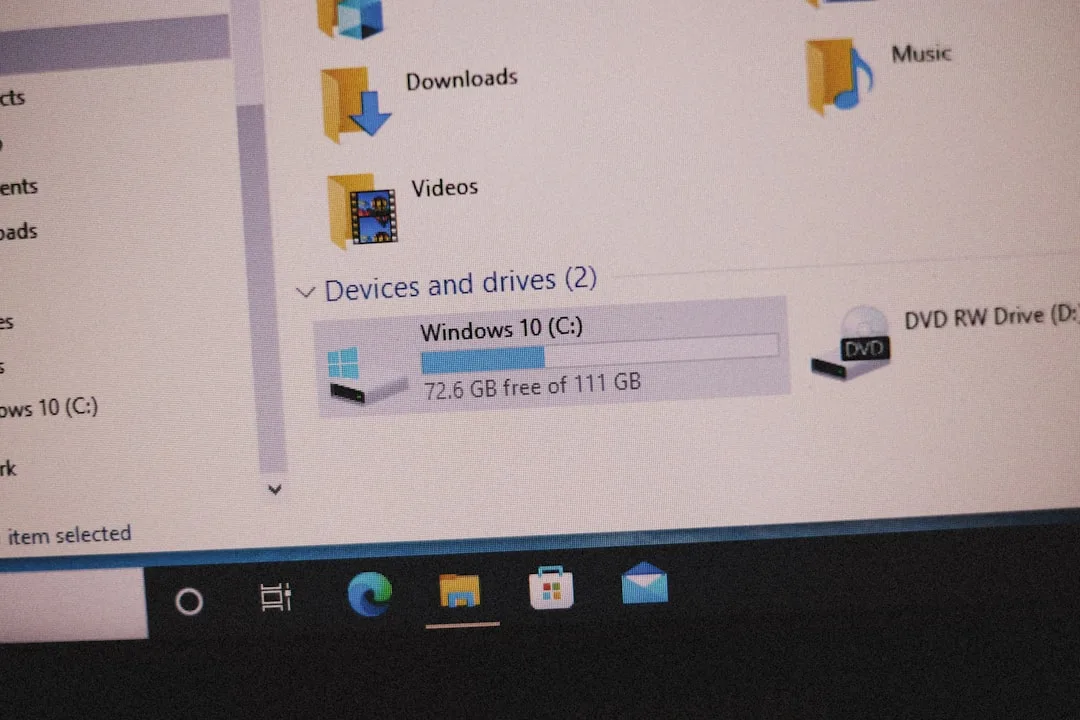
- Open File Explorer and go to This PC.
- Check the capacity of your C: drive. If it's more than 90% full, free up space by removing temp files or moving files to another drive.
Check drive health
- Open an elevated Command Prompt: right-click Start and choose Command Prompt (Admin) — or PowerShell (Admin).
- Type
chkdsk /f C:and press Enter. You'll need to schedule it for the next restart. - Restart; Windows will scan and fix errors on your drive.
If your drive is making clicking sounds or showing bad sectors, back up your data immediately and replace it.
7. Adjust Power Settings or Reset Your PC
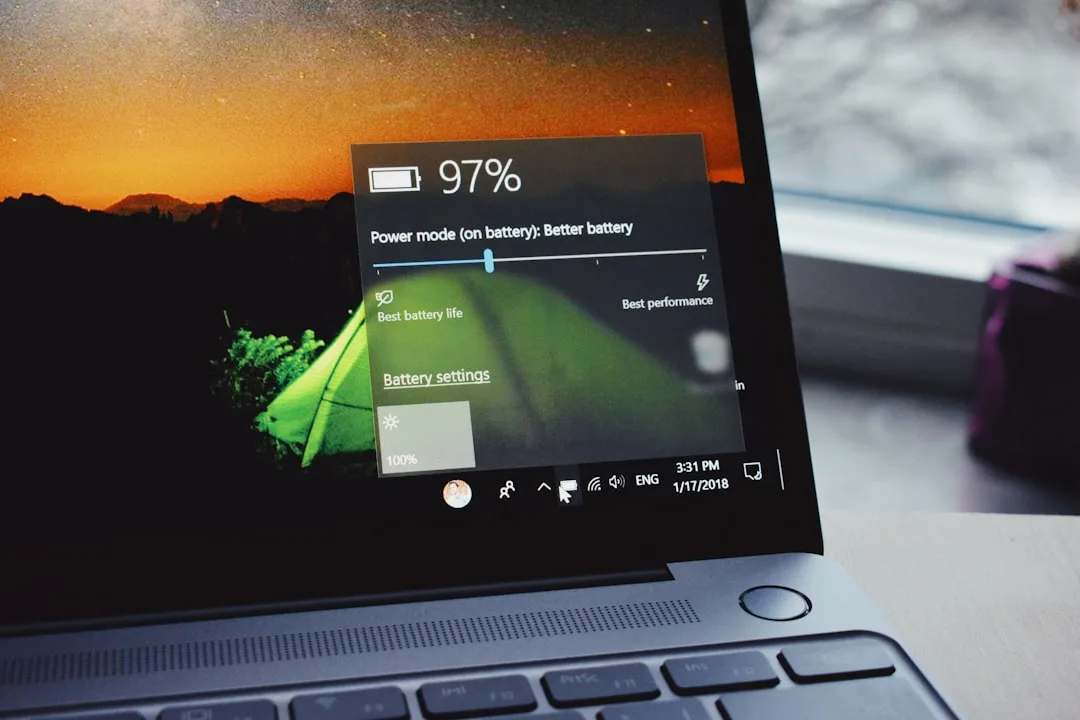
Windows 10's power settings can sometimes cause freezes, especially if your laptop is running in power saver mode. Let's adjust that first.
- Go to Settings > System > Power & sleep.
- Click Additional power settings.
- Choose Balanced (or High performance if it's available).
If none of the above fixes work, a full reset can clear out stubborn glitches. Make sure you back up everything first.
- Go to Settings > Update & Security > Recovery.
- Under Reset this PC, click Get started.
- Choose Keep my files (to keep personal files, but remove apps) or Remove everything for a clean slate.
A reset should be your last resort, but it can be very effective when other fixes don't do the job.
Frequently Asked Questions
Why does my Windows 10 laptop freeze randomly?
Random freezes can be caused by overheating, outdated drivers, malware, or software conflicts. The fixes in this article will help you diagnose and resolve most of these issues.
Can a failing hard drive cause a laptop to freeze?
Yes. A failing hard drive or one with bad sectors can cause system freezes, lag, and even crashes. Use the chkdsk command to check for errors, and consider replacing the drive if you notice unusual noises or frequent issues.
Is there a way to prevent freezes in the future?
Yes. Keep Windows updated, avoid installing too many unused programs, regularly scan for malware, ensure proper airflow to prevent overheating, and maintain at least 15% free space on your system drive.
Key Takeaways
- Start with a simple restart and ensure Windows is fully updated.
- Overheating is a common culprit—keep vents clean and use a hard surface.
- Run a full malware scan and update/roll back drivers if needed.
- Disable unnecessary startup programs to free up system resources.
- Check your hard drive's health and free space, and run
chkdsk. - If all else fails, adjust power settings or perform a system reset.