Your laptop's fan is roaring, the bottom feels like a frying pan, and you're worried it will crash any second. Overheating isn't just uncomfortable—it can slow down your system, damage internal components, and shorten your laptop's lifespan. The good news? You don't need any special tools or technical skills to fix it. Here are 7 simple ways to cool an overheating laptop right now.
Laptops generate heat whenever they run, especially during demanding tasks like gaming, video streaming, or working with large files. When heat builds up faster than the internal cooling system can handle, you'll notice the symptoms: a hot bottom, loud fan noise, performance lag, and even unexpected shutdowns. The following fixes are easy, free, and require nothing more than common sense and household items you probably already have.
1. Put Your Laptop on a Hard, Flat Surface
One of the most common causes of overheating is using your laptop on a soft surface like a bed, couch, cushion, or—you guessed it—your lap. These surfaces block the air vents on the bottom and sides, trapping heat inside. A hard, flat surface allows heat to escape and promotes proper airflow.
What to do: Always place your laptop on a desk, table, or even a hardcover book if you're sitting on a couch. If you absolutely must use it on your lap, find a lap desk or a large, hardcover book to create a barrier. For a quick fix, a cutting board or a flat plastic tray works in a pinch.
2. Elevate the Back of Your Laptop
Most laptops draw cool air in from the bottom and exhaust hot air out the back or sides. By propping up the back, you create a gap that improves airflow. It's one of the fastest, most effective ways to lower temperatures.
What to do: Place a small object under the back edge of your laptop—a thick book, a smartphone stand, or even a notebook. Make sure the object is stable and doesn't slide. Raise it about 1–2 inches for the best effect. You'll instantly feel less heat radiating from the keyboard area, and your fan may spin down.
3. Keep the Vents Clear and Unobstructed
Laptops need to breathe. If your air vents are covered by stickers, papers, or your own hands, heat can't escape. Even a thin layer of dust on the exterior vents can reduce airflow. Check your laptop for vents on the bottom, back, and sides—make sure they're all exposed.
What to do: Move any objects that are blocking the vents. Don't place your laptop on a shelf or against a wall where the exhaust airflow is blocked. Remove any stickers that cover vents (and resist the urge to put new ones there). If you see visible dust on the vents, gently wipe the area with a dry microfiber cloth. Avoid using vacuum cleaners directly on vents, as they can create static damage.
4. Close Unnecessary Programs and Browser Tabs
Every open application and browser tab uses CPU power, and the harder your CPU works, the more heat it produces. If you have 20 tabs open, a music app streaming in the background, and a file syncing with Dropbox, your laptop is working overtime.
What to do: Open your system's task manager or activity monitor and see which programs are using the most CPU. On Windows: press Ctrl+Shift+Esc to open the Task Manager. On Mac: go to Applications > Utilities > Activity Monitor. Quit any apps you're not actively using, and close those sneaky background browser tabs. You'll notice a drop in temperature almost immediately.
5. Switch to a Power Saver or Low Power Mode
Changing your power plan to a more conservative profile slows down your processor slightly, which means less work and less heat. This is a great solution when you're doing basic tasks like browsing or typing.
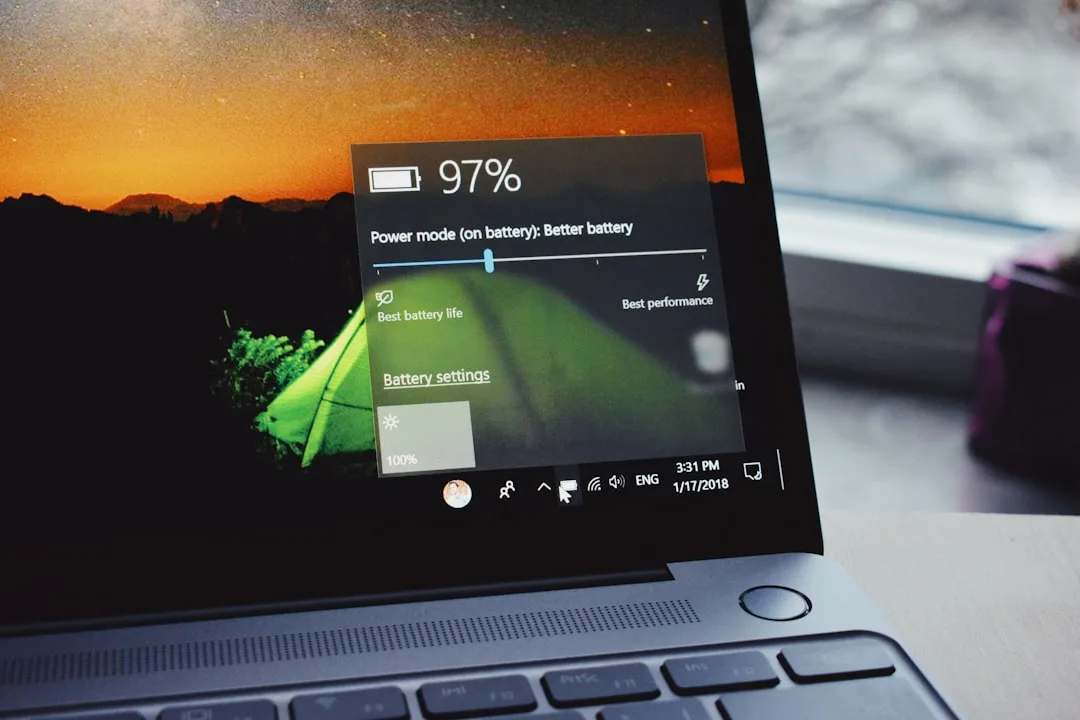
What to do: On Windows, go to Control Panel > Power Options, and select "Power Saver" (or click the battery icon and drag the slider to lower performance). On a Mac, open System Preferences > Battery and enable "Low Power Mode" (or use the Battery menu bar icon). Don't worry—this won't make your laptop feel sluggish for everyday use; it simply caps the processor's performance and reduces heat output.
6. Lower Your Screen Brightness
The display is one of the biggest energy consumers in any laptop. When your screen is at 100% brightness, it not only drains your battery but also generates heat. Reducing the brightness can lower internal temperatures, and it also gives your battery a longer life.
What to do: Press the brightness-down key (usually F2 or F3, or the sun icon) or use the slider in your system settings. Aim for a level that's comfortable but not glaringly bright. You can also turn on auto-brightness, if available, so your laptop adjusts based on ambient light.
7. Take a Break and Let It Cool Down
Sometimes the simplest fix is the most effective. If your laptop is burning hot, it's working too hard. Shut it down, put it to sleep, or just let it idle for a while. Give it time to cool off in a well-ventilated area away from direct sunlight or other heat sources.
What to do: When you notice your fan running constantly and the case feeling unusually warm, save your work, shut down completely, and wait 15–30 minutes. Place it on a hard, cool surface, and resist the urge to use it again until it's cooled down. This can prevent immediate thermal throttling (when your laptop slows down to protect itself) and avoid long-term damage.
Frequently Asked Questions
Is it bad to keep my laptop in sleep mode on my bed?
Yes, sleeping on a soft surface can still block vents and trap heat. Always place your laptop on a hard surface when it's running, even if it's just asleep.
Can overheating permanently damage my laptop?
Overheating can damage internal components over time, especially the CPU and battery. Frequent thermal shutdowns can also cause data loss. Taking immediate action is key.
How often should I clean my laptop's dust?
Every 3–6 months is a good rule, depending on your environment. If you notice excessive heat, clean it sooner. Exterior cleaning with a cloth can be done weekly.
Should I turn off my laptop to cool it down?
Yes, shutting it down briefly is the fastest way to cool it. If you need to keep working, at least put it to sleep for a few minutes.
Key Takeaways
- Always use your laptop on a hard, flat surface.
- Elevate the back to improve airflow.
- Keep vents clear—never block them.
- Close unnecessary apps and tabs to reduce CPU load.
- Use power saver or low power mode for basic tasks.
- Lower screen brightness to reduce heat.
- Take regular breaks and let your laptop cool down.