You're typing along, and suddenly your keyboard starts spitting out numbers instead of letters. Maybe the "U" key types "4," or the "J" key types "1" — and pressing anything else makes no sense. Don't worry: this is a common Windows 10 problem, and in most cases it's not a sign of a dead keyboard. It's almost always the dreaded Num Lock feature. Below, I'll explain why this happens and show you 5 practical fixes to get your keyboard back to normal.
Why Is My Keyboard Typing Numbers Instead of Letters?
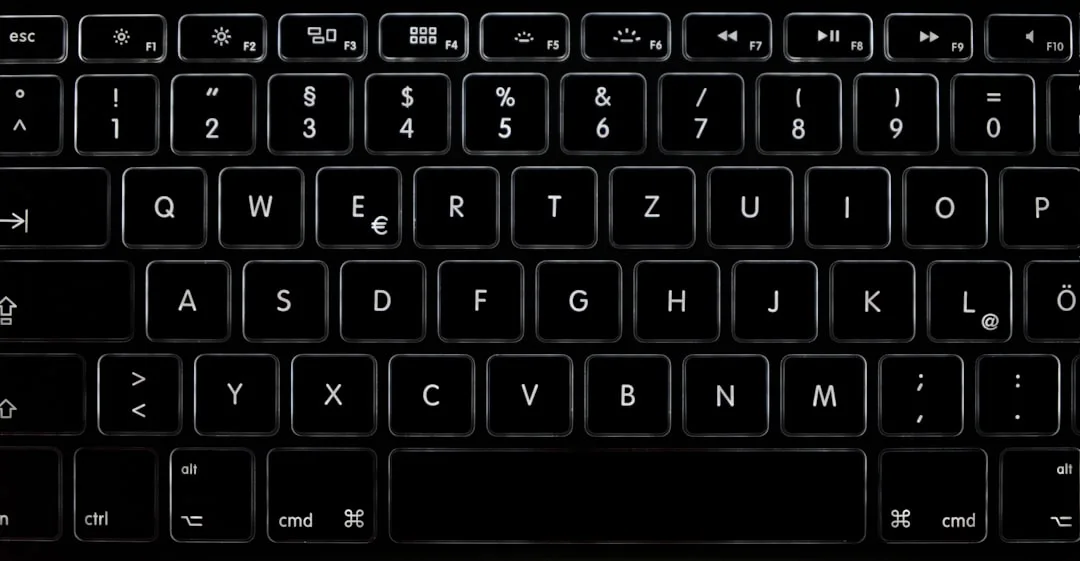
Many keyboards have a hidden numeric keypad built into the regular letter keys. When Num Lock is turned on, the keys on the right side of the keyboard (like U, I, O, J, K, L, M, and others) act as numbers instead of letters. This is a feature on many laptops and compact keyboards that don't have a dedicated number pad.
Num Lock is frequently toggled on accidentally — often by pressing a function key combination or the Num Lock key itself. On laptop keyboards, the small keys with numbers printed on them are usually color-coded (e.g., blue) and share space with the letters. If you see a small number on the same key as a letter, that number is the one that gets typed when Num Lock is active.
But Num Lock isn't the only possible cause. Sometimes the keyboard layout gets changed, a driver becomes corrupted, or an accessibility setting gets enabled. Don't worry—we'll tackle all of these. Let's start with the quickest and simplest fix.
Fix 1: Turn Off Num Lock
The very first thing to try is turning off Num Lock. On most keyboards, there is a dedicated Num Lock key (labeled Num Lk or Num Lock) near the top-right corner. Press it once and see if your keys go back to letters.
If your keyboard doesn't have a dedicated Num Lock key, you'll need to use a function key. Here's how:
- Look for a key marked Fn (usually near the bottom-left corner).
- Also find a key that shows Num Lock in a different color — often it's F11, F12, or Scroll Lock.
- Hold down Fn and press that key at the same time.
On many laptops, the Fn+NumLk combination toggles the embedded numeric keypad on and off. If you don't see a Num Lock label, check your keyboard's quick-start guide or search the web for your laptop model.
What If I Don't Have an Fn Key?
Some desktop keyboards also have a tiny light next to the Num Lock key. Press the Num Lock key; if the light goes off, you're good. If you're using a multi-media or wireless keyboard, look for a toggle button that might say "Number Pad" or show a padlock with a number.
If you've toggled Num Lock and nothing changed, move on to the next fix.
Fix 2: Use the On-Screen Keyboard to Toggle Num Lock
Windows 10 includes a built-in On-Screen Keyboard that can help you turn Num Lock off when your physical keyboard is misbehaving. Here's how to use it:
- Press the Windows key on your keyboard, or click the Start button.
- Type On-Screen Keyboard in the search box and press Enter.
- Once the on-screen keyboard appears, look for the Num Lk button (usually on the bottom-right). If it's illuminated or highlighted, click it once.
The on-screen keyboard mimics a physical keyboard, and if you press the Num Lk key there, it toggles the setting just like pressing it on your real keyboard. You can even check the current status: if the Num Lk key on the on-screen keyboard is highlighted, Num Lock is on.
This method is especially helpful if your physical keyboard lacks a Num Lock key or if the key isn't working properly.
Fix 3: Check Your Keyboard Language and Layout Settings
Sometimes the problem isn't Num Lock at all — the keyboard layout in Windows may have been accidentally changed to a different language or region that maps letters to numbers in the wrong way. Let's check and fix that:
- Go to Settings (press Windows + I).
- Click Time & Language.
- On the left side, click Language.
- Under "Preferred languages," make sure English (United States) or the language you normally use is listed.
- If it isn't, click Add a language, search for your language, and install it.
- Now click on your preferred language and click Options.
- Under "Keyboards," check that the layout is US QWERTY (or your standard layout). If you see something like "US International" or "US Dvorak," that could be the culprit.
- To switch back to US QWERTY, select it and remove the other layout.
You can also quickly switch between keyboard layouts by pressing Windows + Spacebar. If you accidentally installed a second layout, this shortcut may have been pressed and changed your layout without you noticing.
After ensuring the correct layout, test your keyboard again. If it still types numbers, move on.
Fix 4: Run the Hardware and Devices Troubleshooter
Windows has built-in troubleshooters that can automatically detect and fix common keyboard problems. Here's how to run the keyboard troubleshooter:
- Open Settings (Windows + I).
- Click Update & Security.
- Select Troubleshoot on the left.
- Click Additional troubleshooters (or Other troubleshooters in newer versions of Windows 10).
- Scroll down to Keyboard and click it.
- Click Run the troubleshooter.
- Follow any prompts on the screen.
Windows will scan your keyboard for common issues and may offer a fix. This won't always solve the Num Lock problem, but it's worth a try before moving to more technical steps.
Fix 5: Update or Reinstall Your Keyboard Driver
If no software setting is fixing the problem, the culprit could be a corrupted or outdated keyboard driver. Here's how to update or reinstall it:
- Right-click the Start button and select Device Manager.
- Expand the Keyboards section.
- Right-click on your keyboard device (it might say Standard PS/2 Keyboard or list the brand name like Dell or HP) and select Uninstall device.
- Check the box that says Delete the driver software for this device (if available), then click Uninstall.
- Restart your computer.
On restart, Windows will automatically reinstall the correct driver. If you'd rather update the driver without uninstalling, you can:
- Right-click the keyboard device in Device Manager and select Update driver.
- Choose Search automatically for updated driver software.
- Wait for Windows to find and install any available driver updates.
You can also visit your computer or keyboard manufacturer's website for the latest drivers, but be sure to download only from the official support page.
Additional Quick Tips to Prevent This From Happening Again
- Keep an eye on the Num Lock light — if a tiny light near the keyboard is on, Num Lock is active.
- Use the on-screen keyboard to see the current status — the foreground key will be highlighted.
- Check your BIOS/UEFI settings — some computers have a setting that enables Num Lock at startup. You can enter your BIOS by pressing F2/DEL during boot, then look for a "Num Lock State" option and set it to "Off."
- Keyboard shortcuts can help — on many laptops, pressing Fn + F11 (or F12) toggles Num Lock. These are often the most common shortcuts, but they vary by manufacturer.
Frequently Asked Questions
Why is my keyboard typing numbers instead of letters on Windows 10?
This is typically caused by the Num Lock key being enabled. When Num Lock is on, certain letter keys on the right side of the keyboard are mapped to numbers as part of an embedded numeric keypad. Turn off Num Lock (usually via the Num Lock key or Fn + NumLk) to restore normal letter input.
How do I turn off Num Lock on a laptop that has no Num Lock key?
Many laptops require you to press the Fn key in combination with another key (often F11, F12, or Scroll Lock). Look for a key with "Num Lk" printed on it in a different color. If you can't find it, use the On-Screen Keyboard by searching for it in Windows, then click the "Num Lk" button on the on-screen keyboard.
Will uninstalling the keyboard driver harm my keyboard?
No. Uninstalling the keyboard driver is safe. Windows will automatically reinstall it after you restart your computer. This can fix driver corruption that may cause keyboard misbehavior, but it will not make your keyboard permanently nonfunctional.
Could a virus or malware cause my keyboard to type numbers?
It's extremely unlikely. Num Lock is the most common cause. Other software-related possibilities include changed keyboard language settings or corrupted drivers. It's always a good idea to run a reputable antivirus scan if you suspect malware, but the fixes in this article should resolve the issue in 99% of cases.
Key Takeaways
- The most common reason a Windows 10 keyboard types numbers instead of letters is that Num Lock is enabled.
- Press Num Lock or use Fn + NumLk to toggle it off quickly.
- Use the On-Screen Keyboard to check the current Num Lock status and turn it off without a physical key.
- Check your keyboard language and layout if Num Lock isn't the issue.
- Run the keyboard troubleshooter to let Windows detect and fix any hardware issues.
- If all else fails, update or reinstall the keyboard driver from Device Manager.