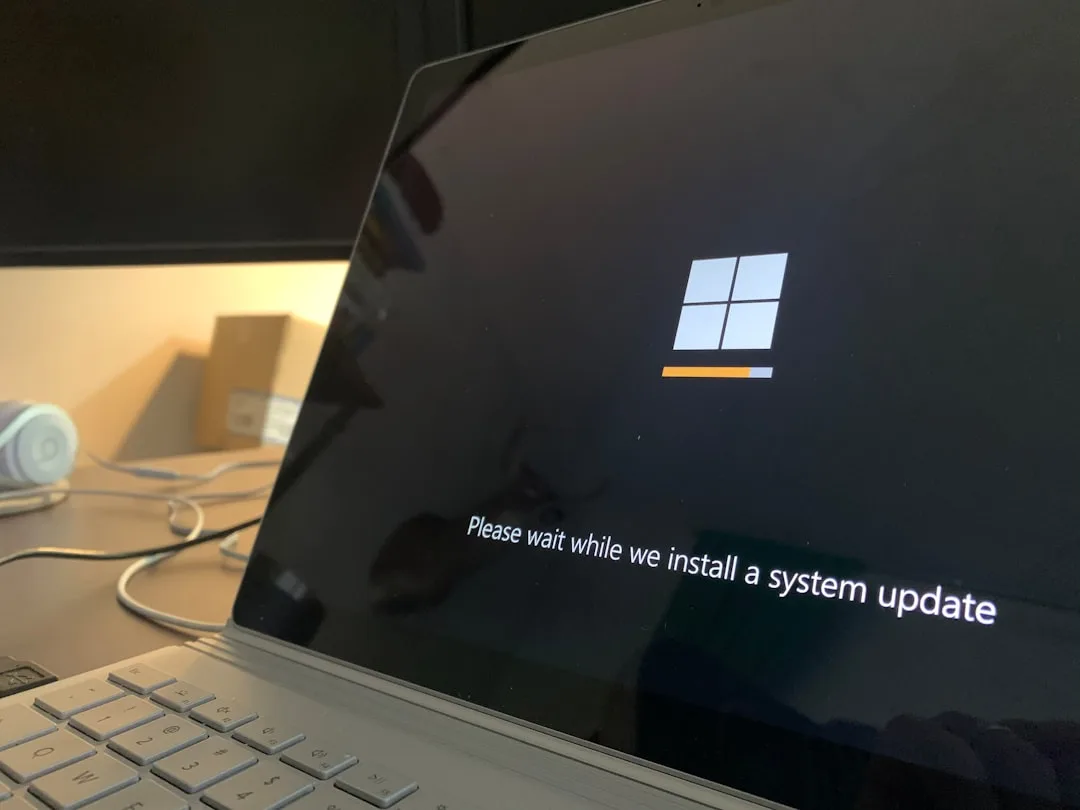
You're in the middle of an important task—maybe a video call, a report, or a game—when suddenly a notification pops up: "We'll restart your PC to finish installing updates." Before you can save your work, the screen goes black and your PC reboots. This is the dreaded Windows 10 randomly restarting after updates problem. It's frustrating, disruptive, and can cause lost work. But you don't have to put up with it. In this guide, you'll learn seven practical ways to stop Windows 10 from restarting without your permission.
Why Does Windows 10 Restart Randomly After Updates?
Windows 10 is designed to install updates and then restart automatically to keep your system secure. By default, it uses a feature called "Automatic Restart" that kicks in during "inactive hours"—unless you configure otherwise. The problem is that Windows isn't great at predicting when you're truly inactive. A few minutes of idle time can trigger a reboot, even if you're just away from your desk. The good news: you can take control.
Method 1: Set Active Hours
The easiest way to prevent random restarts is to tell Windows when you're typically using your PC. Active Hours prevent automatic restarts during that window.
- Go to Settings > Update & Security > Windows Update.
- Click Change active hours.
- Set a time range that covers your typical usage (up to 18 hours). For example, 8:00 AM to 11:00 PM.
- Click Save.
Windows will now delay restarts until outside those hours. If you need more flexibility, you can allow Windows to automatically adjust active hours based on your usage pattern—check the box "Automatically adjust active hours for this device based on activity."
Method 2: Use Group Policy to Disable Automatic Restart
For Windows 10 Pro, Enterprise, or Education users, the Local Group Policy Editor gives you granular control. Note: This method is not available on Windows 10 Home.
- Press Win + R, type
gpedit.msc, and press Enter. - Navigate to Computer Configuration > Administrative Templates > Windows Components > Windows Update.
- Double-click No auto-restart with logged on users for scheduled automatic updates installations.
- Select Enabled and click OK.
This setting prevents Windows from automatically restarting while a user is signed in. Instead, the user will be prompted to schedule the restart.
Method 3: Tweak the Registry (For Windows 10 Home)
If you're on Windows 10 Home, you don't have Group Policy, but you can achieve the same result via the Registry Editor. Be careful: incorrect changes can cause system issues. Always back up the registry first.
- Press Win + R, type
regedit, and press Enter. - Navigate to
HKEY_LOCAL_MACHINE\SOFTWARE\Policies\Microsoft\Windows\WindowsUpdate\AU. If theAUkey doesn't exist, right-click WindowsUpdate, select New > Key, and name itAU. - Right-click in the right pane, select New > DWORD (32-bit) Value, and name it
NoAutoRebootWithLoggedOnUsers. - Double-click the new value, set the data to 1, and click OK.
- Close Registry Editor and restart your PC.
Now Windows will not reboot automatically while you're logged in.
Method 4: Disable the Automatic Restart Service
You can stop the Windows Update service that triggers reboots, but this is a temporary fix because Windows will re-enable it eventually.
- Press Win + R, type
services.msc, and press Enter. - Scroll down to Windows Update, right-click, and select Properties.
- Click Stop to halt the service, then set the Startup type to Disabled.
- Click Apply and OK.
Keep in mind: this also prevents updates from downloading and installing. You'll need to manually enable the service later to get security patches.
Method 5: Schedule Restarts with Task Scheduler
Windows Update uses a scheduled task to reboot. You can disable that specific task to prevent automatic restarts while still allowing updates.
- Press Win + R, type
taskschd.msc, and press Enter. - Navigate to Task Scheduler Library > Microsoft > Windows > UpdateOrchestrator.
- Look for a task named Reboot (or similar, like Schedule Maintenance Reboot).
- Right-click the task and choose Disable.
This stops the automatic reboot trigger. If you don't see a Reboot task, check under Windows Update folder or Maintenance. Be careful not to disable essential tasks.
Method 6: Set Your Connection as Metered
Metered connections are designed for limited data plans, but they also prevent Windows from automatically downloading and installing updates. This is a great option for Wi-Fi users.
- Go to Settings > Network & Internet > Wi-Fi.
- Click your current network name.
- Toggle Set as metered connection to On.
With a metered connection, Windows will only download critical updates, and it will ask for permission before restarting. For Ethernet connections, this option isn't natively available, but you can use a registry hack or third-party tool (though we recommend sticking with the other methods).
Method 7: Use a Built-In Update Pause
Windows 10 lets you pause updates for up to 35 days. This gives you a temporary break from forced restarts.
- Go to Settings > Update & Security > Windows Update.
- Click Pause updates for 7 days. You can click again to extend the pause up to 35 days (in Windows 10 version 1903 and later).
- To resume updates, click Resume updates when you're ready.
Note: Security updates will still be installed after the pause period ends, but you'll have more control over timing.
FAQ: Common Questions About Random Restarts After Updates
1. How do I stop Windows 10 from restarting without permission?
Use Active Hours (Method 1) or disable automatic restarts via Group Policy (Method 2) or Registry (Method 3). The Task Scheduler method (Method 5) also works well.
2. Will these methods prevent security updates from installing?
Most methods allow updates to download and install, but prevent only the restart. However, disabling the Windows Update service (Method 4) blocks all updates. Use Active Hours or Group Policy to keep receiving updates while stopping reboots.
3. Can I schedule the restart at a convenient time?
Yes. When Windows prompts you to restart, you can schedule it for a later time. You can also use the "Schedule restart" option in Settings > Update & Security > Windows Update.
4. What happens if I ignore an update for too long?
If you delay updates beyond the grace period (usually 7–14 days), Windows may force a restart to install critical security patches. To avoid that, schedule a restart during off-hours or use Active Hours to ensure it occurs when you're not using the PC.
Key Takeaways
- Set Active Hours to define when you use your PC and prevent restarts during that time.
- Use Group Policy (Pro/Enterprise) or Registry (Home) to disable automatic reboots while logged in.
- Disable the Reboot task in Task Scheduler to block restart triggers only.
- Set your Wi-Fi as metered to delay updates and restarts.
- Pause updates temporarily if you need a short break.
- Always keep updates enabled for security, but control the restart timing.