Is your internet crawling at a snail's pace even though you're paying for high-speed? Do you see unknown devices in your network list? You might have uninvited guests—neighbors or intruders—using your Wi-Fi without permission. This isn't just annoying; it can slow your connection, eat into your data cap, and even expose your personal information. The good news? Securing your home Wi-Fi network is easier than you think. Follow these steps to keep your network safe.
Why Secure Your Wi-Fi?
An unsecured Wi-Fi network is an open invitation. A neighbor might hop on to stream Netflix, or a more malicious actor could intercept your online activity, steal login credentials, or infect your devices with malware. Beyond the security risks, unauthorized users can consume your bandwidth, causing lag for your own devices. Securing your network protects your privacy, performance, and peace of mind.
Get to Know Your Router's Admin Panel
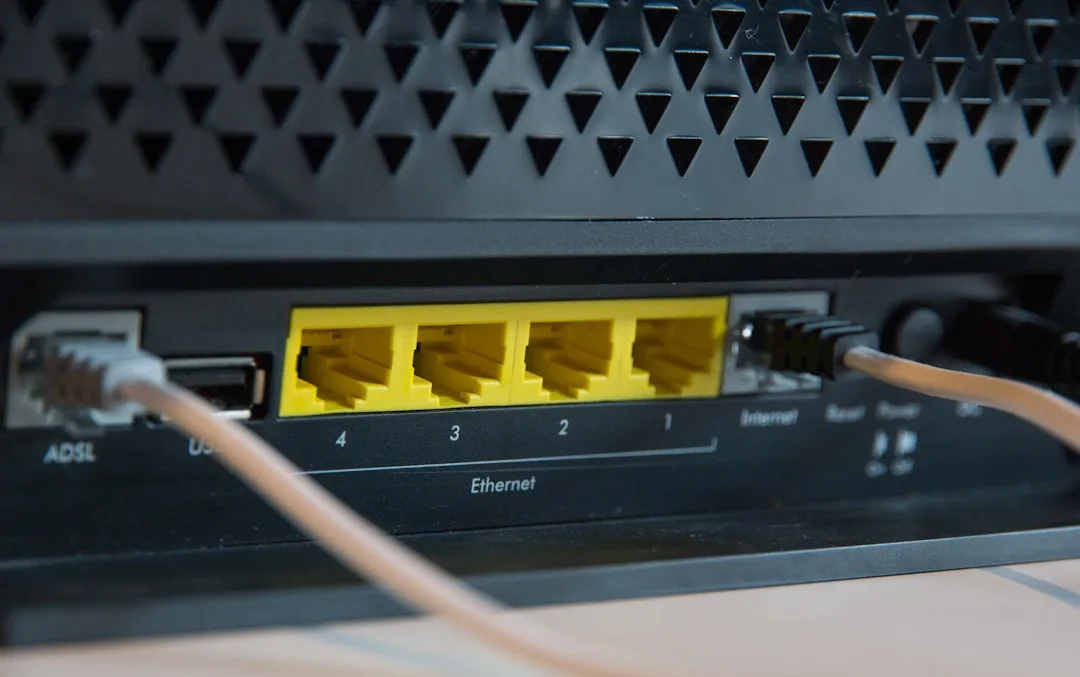
Your router is the command center for your home network. To make changes, you need to access its admin panel. Here's how:
- Find your router's IP address (often printed on the router, or look for "default gateway" in your device's network settings).
- Type that IP into a web browser address bar.
- Enter the admin username and password (if you haven't changed them, they're likely on a sticker on the router or in the manual).
Once logged in, you'll see a dashboard with settings for security, wireless, and more.
Change Default Login Credentials
The first step: change the default admin username and password. Many routers use "admin" and "password"—easy for anyone to guess. Choose a strong, unique password for the router itself, not just your Wi-Fi. This prevents someone from logging into your router and tampering with settings.
Enable WPA3 or WPA2 Encryption
Encryption scrambles data traveling over your network. The current standard is WPA3, but if your router is older, WPA2 is still secure. Avoid WEP or WPA—they're outdated and easily cracked.
To change encryption settings:
- In your router admin panel, find 'Wireless', 'Security', or similar.
- Select 'WPA3' if available, otherwise 'WPA2-PSK (AES)'.
- Save and apply.
Create a Strong Wi-Fi Password
A weak Wi-Fi password is like leaving your front door unlocked. Use a password that is:
- At least 12 characters long
- Mix of uppercase, lowercase, numbers, and symbols
- Not a common phrase or personal information (like your address)
Set it under the 'Wireless' settings. Change it periodically for added security.
Hide Your Network SSID (Or Not?)
Hiding your network name (SSID) means it won't appear in the list of available Wi-Fi networks. While this can deter casual snoopers, it doesn't provide real security. Determined intruders can still find hidden networks using sniffer tools. Moreover, hiding your SSID makes it slightly harder for your own devices to connect. A better approach: strong encryption and a good password, plus the steps below.
Enable MAC Address Filtering
Every device has a unique MAC address. You can configure your router to only allow specific MAC addresses to connect. This adds a layer of control:
- Find the MAC filter or access control section in your router settings.
- Add the MAC addresses of your own devices (you can find these in device network settings or in the router's connected devices list).
- Enable filtering so only those listed can connect.
Be aware that MAC addresses can be spoofed, so this is not foolproof but it's an extra barrier.
Keep Your Router's Firmware Updated
Router manufacturers release firmware updates to fix security vulnerabilities. Check your admin panel for a 'Firmware Update' or 'Router Update' option. Some routers update automatically; if not, download the latest firmware from the manufacturer's website and upload it manually. Outdated firmware is a common entry point for attackers.
Disable WPS (Wi-Fi Protected Setup)
WPS was designed to make connecting devices easier, but it has serious security flaws. An attacker can brute-force the 8-digit PIN in hours. Turn off WPS in your router settings (usually under 'Wireless' or 'Security').
Consider a Guest Network
If you have visitors who need Wi-Fi, set up a separate guest network. This isolates their traffic from your main network, protecting your devices even if a guest's device is compromised. Enable it in your router's wireless settings—it typically creates a second SSID with its own password. You can limit its speed or access to local resources.
Use a VPN for Extra Privacy
A Virtual Private Network (VPN) encrypts all traffic leaving your network. Even if someone manages to intercept your data, they won't be able to read it. Install a VPN on your router or on individual devices. This is especially useful for sensitive activities like online banking or shopping.
Monitor Your Network for Uninvited Guests
Regularly check who's connected. Most router admin panels list connected devices. If you see unfamiliar ones, change your Wi-Fi password immediately. Apps like Fing can scan your network on a smartphone. Make it a habit to review every month.
FAQ
Can neighbors really steal my Wi-Fi?
Yes, if your network is unsecured or has a weak password. Anyone within range can connect and use your bandwidth.
How do I know if someone is using my Wi-Fi?
Check your router's list of connected devices. If you see devices you don't recognize, or if your internet is unusually slow, someone may be leeching.
Is hiding my SSID effective?
It deters casual users but isn't a real security measure. Determined intruders can still find your network. Focus on strong encryption and passwords instead.
Should I be worried about neighbors hacking into my devices?
Once on your network, a malicious user could attempt to access shared folders or exploit vulnerabilities. Using a strong firewall, keeping devices updated, and enabling device passwords helps mitigate this risk.
Key Takeaways
- Change your router's default admin credentials.
- Use WPA3 or WPA2 encryption with a strong Wi-Fi password.
- Turn off WPS and hide your SSID only if you prefer—but don't rely on it.
- Enable MAC address filtering for extra control.
- Keep your router's firmware up to date.
- Set up a guest network for visitors.
- Use a VPN for an extra layer of encryption.
- Regularly monitor your network for unknown devices.