You're waiting for your computer to boot up, then waiting for a program to open, then waiting for a web page to load. It's frustrating, and you might think you need a new computer. But before you spend money, try these 10 proven methods to speed up your slow computer without buying new hardware. Most are free and take just minutes.
1. Uninstall Unnecessary Programs
Over time, computers accumulate software you no longer use. Many of these programs run background processes that eat up system resources. Removing them can free up space and improve performance.
- Open the Control Panel (or Settings app in Windows 10/11).
- Go to Programs and Features (or Apps & Features).
- Sort by size or date to see the biggest and oldest programs.
- Uninstall anything you don't recognize or no longer need.
- Repeat for all user accounts if multiple people use the computer.
Be careful not to remove drivers or essential system software. If unsure, search the program name online first.
2. Disable Startup Programs
Many applications automatically launch when you start your computer, slowing down the boot process and using memory in the background. Disabling them can significantly speed up startup and free up resources.
- Press Ctrl+Shift+Esc to open Task Manager.
- Click the Startup tab.
- Review the list of startup programs.
- Right-click any program you don't need at startup and select Disable.
Common culprits include chat apps, cloud sync services, and updaters for programs you rarely use. You can always manually open these programs later when needed.
3. Free Up Disk Space
A full hard drive can dramatically slow down your computer. Aim to keep at least 15-20% of your drive free. Here's how to reclaim space:
- Empty the Recycle Bin.
- Delete temporary files using the built-in Disk Cleanup tool.
- Uninstall large programs you don't use.
- Move personal files (photos, videos, documents) to an external drive or cloud storage.
- Run the Storage Sense feature in Windows 10/11 to automatically free up space.
Using Disk Cleanup
Search for "Disk Cleanup" in the Start menu, select your system drive (usually C:), and let it scan. Check the boxes for temporary files, recycle bin, and system cache. Click OK to delete.
4. Run Disk Defragmenter (for HDDs Only)
If your computer uses a traditional hard disk drive (HDD), files can become fragmented, causing slower access. Defragmenting rearranges files for faster reading. Note: Do not defragment an SSD (solid state drive) as it can shorten its lifespan.
- Search for "Defragment and Optimize Drives" in the Start menu.
- Select your HDD and click Optimize.
- Set up a schedule for automatic optimization.
If you have an SSD, this tool will instead run the TRIM command, which helps maintain performance.
5. Scan for Malware and Viruses
Malware can consume system resources, display ads, or spy on your activity. A thorough scan can remove hidden threats and speed up your computer.
- Use Windows Defender (built-in) or a third-party antivirus you trust.
- Run a full system scan (not just quick scan).
- Consider a second-opinion scanner like Malwarebytes for stubborn threats.
- Remove any detected items and restart your computer.
Keep your antivirus updated for best protection.
6. Update Software and Drivers
Outdated software and drivers can cause performance issues and security vulnerabilities. Keeping everything up to date ensures compatibility and often includes performance improvements.
- Run Windows Update to install the latest system updates.
- Update graphics, audio, and chipset drivers from your computer manufacturer's website.
- Use a driver update tool if you're unsure which drivers need updating (but download only from official sources).
- Update your web browser and other frequently used programs.
7. Adjust Visual Effects for Performance
Windows includes many eye candy effects like animations, shadows, and transparency. Turning these off can free up system resources, especially on older hardware.
- Right-click This PC and select Properties.
- Click Advanced system settings.
- Under Performance, click Settings.
- Choose Adjust for best performance to disable all effects, or manually uncheck the ones you can live without.
You can also disable transparency effects in Windows 10/11 under Settings > Personalization > Colors.
8. Increase Virtual Memory
If your computer often runs out of physical RAM, it uses a portion of your hard drive as virtual memory. Increasing this allocation can help prevent slowdowns when memory is low.
- Go to Advanced system settings as above.
- Under Advanced, click Settings for Performance.
- Click the Advanced tab, then under Virtual memory, click Change.
- Uncheck "Automatically manage paging file size for all drives".
- Select your system drive, choose Custom size, and set the initial and maximum size to 1.5 times your physical RAM (e.g., if you have 8GB RAM, set both to 12288 MB).
- Click Set and restart your computer.
Don't set it too high; excessive virtual memory can slow things down if your drive is slow.
9. Clean Dust from the Inside
Dust buildup can cause overheating, which forces your computer to throttle performance to cool down. Physical cleaning can make a big difference.
- Shut down your computer and unplug it.
- For desktops: open the side panel and use compressed air to blow dust out of fans and vents.
- For laptops: use compressed air on vents and consider opening the bottom panel if you're comfortable (watch a guide for your model).
- Clean the fan blades with a soft brush or cotton swab.
- Ensure all fans spin freely after cleaning.
Be gentle and avoid touching internal components. If your computer is under warranty, check the terms before opening.
10. Perform a Clean Install of Windows (Last Resort)
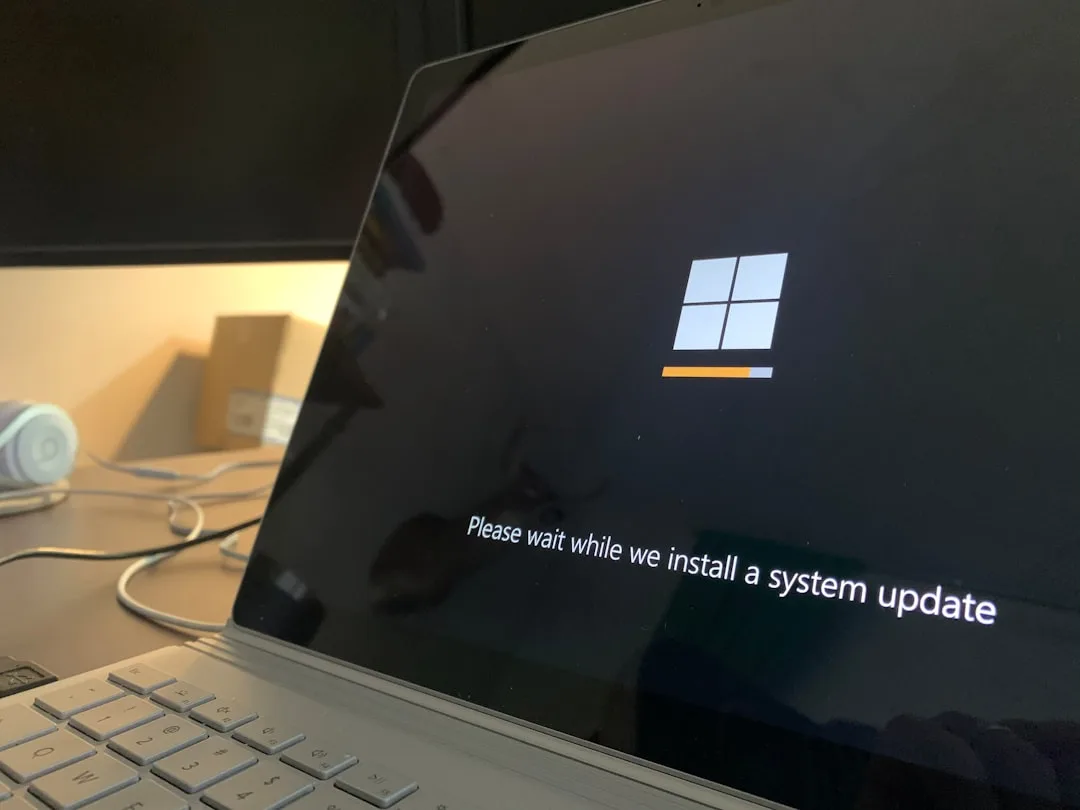
If none of the above steps help, a clean Windows installation can give your computer a fresh start, removing years of accumulated junk and registry errors. This effectively resets your system to factory condition.
- Back up all important files to an external drive or cloud storage.
- Use Windows 10/11's built-in reset feature: Settings > Update & Security > Recovery > Reset this PC.
- Choose Remove everything for a truly clean slate.
- Alternatively, create a bootable USB drive with the Windows Media Creation Tool and do a fresh install.
- After installation, reinstall only the programs you need and restore your files from backup.
This step takes time and effort but can make an older computer feel like new again.
Try these methods in order from simplest to most involved. Most people see a noticeable improvement after just the first five steps. With a little maintenance, you can speed up your slow computer without buying new hardware and postpone that upgrade for months or even years.