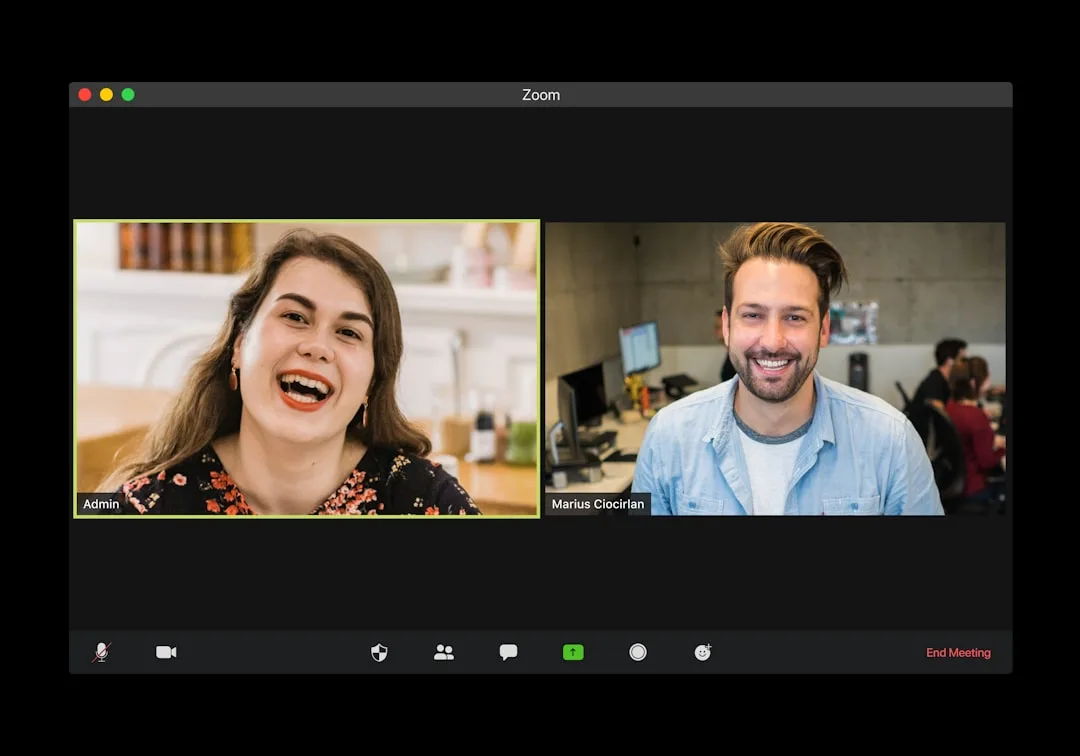
You're in an important Zoom meeting, trying to sound professional, but your dog won't stop barking, the air conditioner is humming, and your neighbor is mowing the lawn. Background noise can derail a conversation, make you look unprofessional, and leave everyone frustrated. The good news is you don't need expensive equipment to fix it. Here are practical, zero-cost ways to reduce background noise in Zoom calls using what you already have.
1. Optimize Your Environment Before the Call
The cheapest noise reduction is prevention. A few tweaks to your surroundings can make a huge difference.
Close doors and windows
Sound travels. Shut the door to your room and windows to block outside noise.
Choose a quiet room
If possible, pick a room away from household noise – not the kitchen or living room.
Soft furnishings absorb sound
Hard surfaces reflect sound. Add rugs, curtains, cushions, or even towels on a chair to dampen echoes.
Turn off noisy appliances
Air purifiers, fans, refrigerators, and HVAC systems can be loud. Switch them off or move to a different spot.
Mute yourself when not speaking
This is the simplest way to avoid transmitting noise. Use the spacebar as a push-to-talk toggle (enable in Zoom settings).
2. Use Zoom's Built-in Audio Settings
Zoom has several free noise reduction features that many people overlook.
Enable ‘Suppress Background Noise’
Go to Settings > Audio > Suppress background noise. Choose from Auto, Low, Medium, or High. Start with High for noisy environments, but be aware it may make your voice sound slightly artificial.
Turn on ‘Original Sound’
This is for musicians, but you can disable it to let Zoom process and filter noise.
Adjust microphone sensitivity
Under Settings > Audio, uncheck ‘Automatically adjust microphone volume’. Then lower the input volume manually so it only picks up your voice when you speak loudly. Test with a recording.
Use the ‘Mute on Entry’ feature
Hosts can set participants to join muted. Attendees can manually mute themselves.
3. Free Software Solutions
Desktop applications can filter noise before it reaches Zoom.
Krisp (free tier)
Krisp is a standalone noise cancellation app that works with any communication tool. The free version gives you 60 minutes per day. Install it, select it as your microphone in Zoom, and it removes background noise in real time.
NVIDIA RTX Voice (if you have a compatible GPU)
This free tool uses AI to eliminate noise. Even if you don't have an NVIDIA card, older versions may work. It's very effective.
Audacity (for pre-recorded clean-up)
Not for live calls, but if you record a meeting or message, you can use Audacity (free) to reduce noise: select a sample of silence, go to Noise Reduction, then apply.
4. Cheap Hardware Hacks
Everyday items can act as makeshift pop filters and shock mounts.
- Pencil trick: Place a pencil or pen horizontally in front of your mouth (about 1-2 inches away). It helps reduce plosive sounds like ‘p’ and ‘b’.
- Headset earbud: Use the earbud that came with your phone. It's often omnidirectional and closer to your mouth, reducing ambient noise.
- Cardboard box fort: Place your microphone inside a small open cardboard box lined with fabric – it acts as a DIY sound booth.
- Closet of clothes: Hang soft fabrics (coats, towels) around your desk to absorb sound.
5. Positioning Your Microphone Correctly
Even a laptop mic works better if placed correctly.
- Keep the mic 6–12 inches from your mouth.
- Avoid pointing the mic at noise sources (windows, fans).
- Use a headset or earbuds with a built-in mic – it's closer to your mouth and less sensitive to room noise.
6. Test and Adjust Before Important Calls
Always do a quick 30-second test using Zoom's ‘Test Computer Audio’ (Settings > Audio > Test). Record yourself reading a paragraph, then play it back. If you hear noise, try different settings or reposition your mic.
7. Advanced Free Techniques
OBS Virtual Audio Mixer
If you're tech-savvy, use OBS Studio (free) with noise suppression filters. Add a ‘Noise Suppression’ filter to your mic source, then route the audio to Zoom via a virtual cable (like VB-Cable, also free). This gives you customizable noise reduction.
Voicemeeter Banana
Another free virtual audio mixer with built-in noise gate and EQ. It has a learning curve but offers professional-grade control.
FAQ
1. Does Zoom's noise suppression really work?
Yes, especially the High setting. It uses AI to cut out constant noises like fans or traffic. However, it may affect voice quality slightly. Test and adjust in your specific environment.
2. Can I use my phone as a microphone to reduce noise?
Yes. Apps like WO Mic or DroidCam let your phone act as a wireless mic. Smartphones often have decent noise-canceling mics. Place the phone near your mouth for best results.
3. Will turning down my mic volume help?
Yes, it reduces sensitivity to ambient noise. But you'll need to speak louder or keep the mic closer. It's a trade-off.
4. How do I stop background noise from other participants?
As a host, mute all participants on entry. You can also enable ‘Request Unmute’ to control when others speak. Encourage them to use their own noise reduction settings.
Key Takeaways
- Prevent noise by closing doors, turning off appliances, and using soft furnishings.
- Use Zoom's built-in suppress background noise and manual mic volume.
- Try free software like Krisp (60 min/day) or NVIDIA RTX Voice.
- Position your mic close to your mouth and away from noise sources.
- Test before every important call. Small adjustments make a big difference.